 Tracy Jackson15 yrs in online marketing
ClickUp Review 2026: Is It Worth It? Pros and Cons, Verdict
Table of Contents
| ClickUp Review: Quick VerdictOverall rating: 4.2 / 5 Starting price: Free Forever; paid plans from $7/user/mo (annual) Best for: Marketing agencies, remote teams, startups, and ops leads who need feature depth and are willing to invest setup time Skip if: Your team prioritises simplicity, has non-technical users, or needs polished mobile and time tracking from day one Free plan: Yes — Free Forever with unlimited tasks and members (60MB storage) |
If you’ve spent any time researching project management tools, you’ve run into ClickUp.
The platform markets itself as the everything app for work, and it isn’t entirely wrong — the feature list is genuinely staggering.
I’ve used ClickUp across real projects — managing editorial calendars, client deliverables, and internal ops workflows. What follows isn’t a feature spec sheet.
It’s an honest assessment of where ClickUp earns its reputation and where it still has real work to do.
For context on how it stacks up against the field, I’ve also covered project management tools broadly, including a full Monday.com review if you want a direct comparison point.
What Is ClickUp?
ClickUp launched in 2017, founded by Zeb Evans out of frustration with the fragmentation of workplace tools — too many apps, too much context-switching.
The idea was to consolidate tasks, docs, communication, and reporting into a single platform, and that’s still exactly what it does.
Native features cover task management, document collaboration, time tracking, dashboards, whiteboards, automations, and team chat.
It serves everyone from individual freelancers on a free plan to enterprise teams with complex permission structures.
The breadth is real. So is the complexity that comes with it.
Disclaimer: If you buy something using the links in this article, I may receive a commission at no extra cost to you.
Know that I only promote stuff that I use and trust for the sake of my readers and the reputation of this site.
Who Is ClickUp Best For?
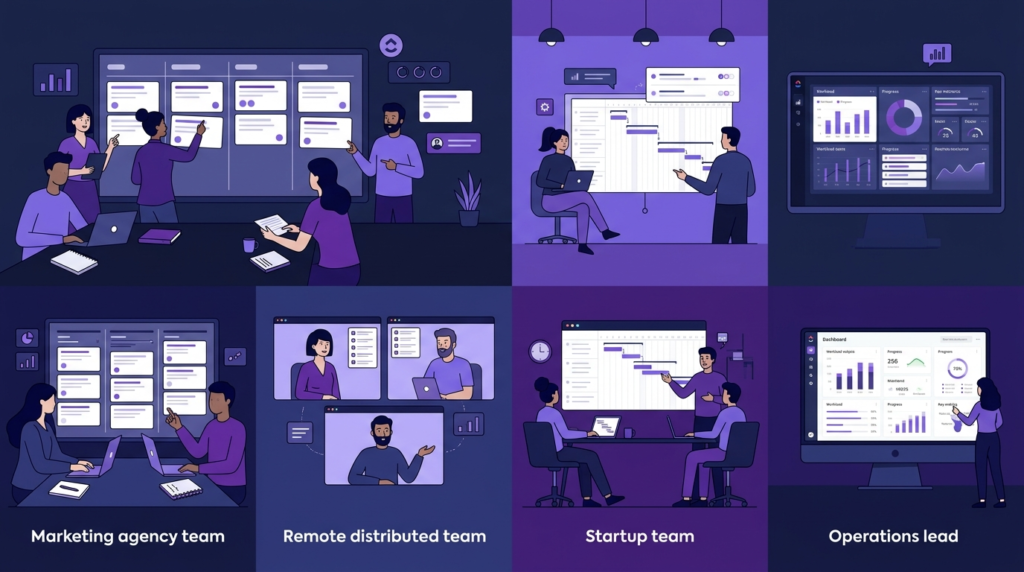
ClickUp rewards teams willing to invest time in setup. Here’s where I think it genuinely shines:
| Team type | Why ClickUp fits |
| Marketing agencies | Managing multiple client projects, campaign timelines, and content calendars simultaneously |
| Remote and distributed teams | Async work needs docs, chat, and task tracking in one place without tab-switching |
| Startups and growing SMBs | Teams that will outgrow simple tools and want room to scale without switching platforms |
| Operations leads | Custom dashboards, automation builders, and reporting tools justify the learning curve investment |
| Nonprofits | Free plan generosity plus a genuine nonprofit discount makes ClickUp accessible on tight budgets |
If you run a nonprofit and want to see how ClickUp applies to that context specifically — discounts, free plan depth, and real-world fit — I’ve covered that separately in my guide to ClickUp for nonprofits.
ClickUp Features: An In-Depth Look
Task management and views
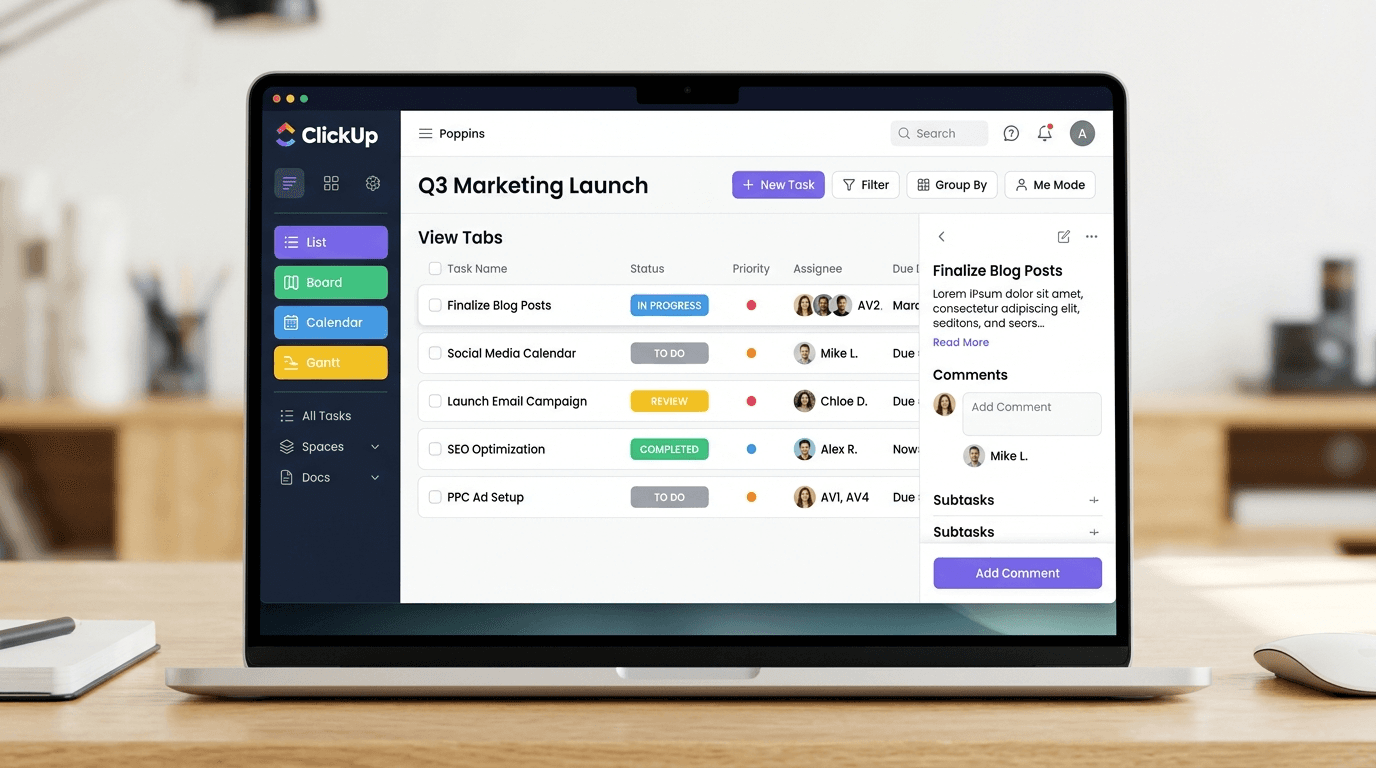
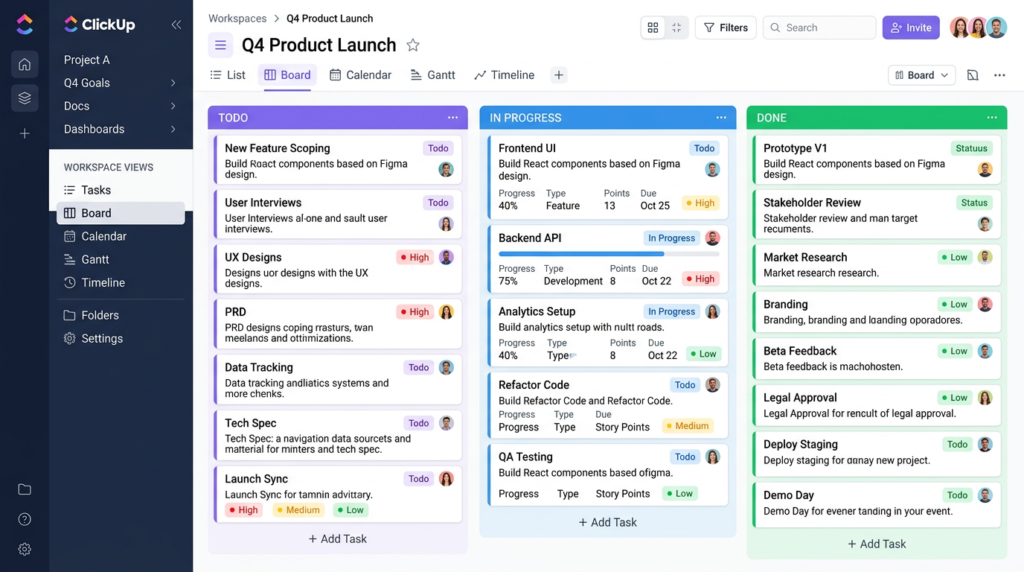
ClickUp offers more views than any comparable tool: List, Board, Calendar, Gantt, Timeline, Table, Workload, Map, and others.
On paper, that’s impressive. In practice, it’s one of the most common sources of new-user friction.
Here’s the best-practice tip I wish I’d had earlier: pick 3–4 views and hide the rest.
Enable List for daily task management, Board for kanban-style sprint work, Calendar for deadlines, and Gantt or Timeline if you’re managing dependencies.
Leave everything else collapsed until you have a specific reason to use it.
This single habit cuts the onboarding overwhelm dramatically — and it’s absent from nearly every ClickUp tutorial I’ve read.
Underneath the view layer, the task structure itself is solid.
Custom statuses, nested subtasks, multiple assignees, priorities, and custom fields all work reliably.
The hierarchy — Workspace → Space → Folder → List → Task — gives larger teams meaningful organisation without forcing it on smaller ones.
ClickUp Brain (AI)
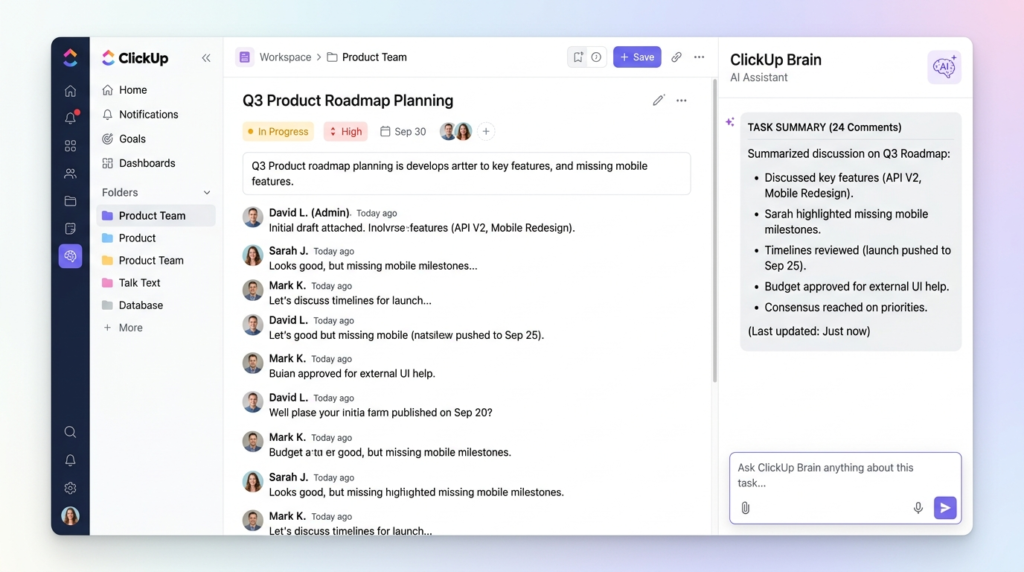
ClickUp Brain is the platform’s AI layer, available as an add-on on paid plans.
It covers three main use cases: summarising tasks and long comment threads, generating task descriptions and brief content drafts, and answering questions about your workspace via a chat-style interface.
The honest assessment: Brain is genuinely useful for specific tasks.
Thread summaries are the clearest win — if you’ve been away for a few days and need to catch up on a 40-comment task, Brain pulls the key points quickly and accurately.
Task description generation works for routine briefs and sprint tickets.
The workspace Q&A is hit-and-miss; it works best on well-structured spaces and struggles with loosely organised ones.
What Brain isn’t: a transformative AI overhaul of how you work. It’s a well-integrated productivity layer, not magic.
Anyone selling you the AI hype version of ClickUp Brain hasn’t used it on a real project.
Docs
ClickUp Docs is a solid embedded document editor with simultaneous editing, nested pages, and the ability to embed live tasks directly inside a document.
That last feature is genuinely useful for SOPs — you can write the process and attach the recurring task in the same place.
The Google Docs comparison is inevitable: ClickUp Docs is fine for internal wikis, SOPs, and project briefs.
It’s not a Google Docs replacement for document-heavy workflows.
Formatting options are more limited, and co-editing on complex long-form documents can feel sluggish at times.
For knowledge management and process documentation within a project context, though, it holds up well.
Automations
ClickUp’s automation builder is one of the better ones in this category.
Over 100 trigger types cover the most common administrative tasks: status changes, task assignments, due date updates, comment additions, and more.
Chaining these together to reduce repetitive work is where the real value is.
The Business plan provides 5,000 automations per month — more than enough for most SMB teams.
A marketing agency running multiple client workspaces, for example, can automate status changes when content moves from draft to review, automatically notify the account lead, and reassign tasks on completion, all without writing a single line of code.
That kind of admin reduction adds up fast.
Dashboards and reporting
Dashboards update in real time as tasks move and statuses change.
You can build workload views, sprint velocity charts, goal tracking widgets, and time tracking summaries from a single screen.
For ops leads and agency project managers who need a live read on team capacity, this is one of ClickUp’s clearest strengths.
The Unlimited Dashboards feature (available on Business and above) removes restrictions on the number and type of cards you can add.
On the Unlimited plan you get functional dashboards, but the more advanced card types — like sprint burndown and workload reporting — require Business.
Integrations
The integrations story is fine — Slack, Google Drive, HubSpot, GitHub, Zapier, and a solid range of others.
You’re not going to hit a wall with the tools most SMB teams actually use.
What I’d push back on is ClickUp’s own marketing here, which oversells this. The native integrations are functional, not deep.
If you need a tight two-way sync with your CRM or a custom data flow, you’re running it through Zapier or Make, not a native connection.
That’s not a dealbreaker. Zapier closes most gaps. Just don’t go in expecting Zapier-level flexibility from ClickUp’s native integrations list.
Time tracking
This is where I have to be direct: ClickUp’s time tracking UX is the platform’s most significant weak point.
Starting a timer requires multiple clicks — navigate to a task, locate the time tracking widget, then start it.
It’s not intuitive in the way a dedicated tool like Toggl or Clockify is. There’s no one-click global timer.
More critically, ClickUp’s time tracking has no payroll or accounting export.
If your team needs to turn tracked time into invoices or payroll, you’re exporting manually or running a workaround integration.
For agencies billing by the hour or teams with compliance requirements, this is a genuine limitation — not a minor UX quibble.
Most reviews gloss over this. Don’t make a time-tracking-dependent workflow decision based on ClickUp’s feature page alone.
Whiteboards
I’ll be honest — I didn’t expect to use Whiteboards much.
Then I ran a sprint planning session inside ClickUp and converted half the sticky notes directly into tasks without leaving the board.
That’s the feature in a nutshell: visual brainstorming that’s actually connected to your work, not siloed in a separate tool.
It’s not Miro.
If your team does serious visual work — complex system diagrams, design workshops, large-scale process mapping — you’ll want a dedicated whiteboarding tool.
But for project kickoffs and planning sessions where you’d otherwise export a Miro board and manually recreate the tasks in your PM tool, Whiteboards removes a genuinely annoying step.
Chat
ClickUp Chat adds team channels similar to Slack — threaded conversations, direct messages, and task links inline.
The honest caveat: Chat is a newer feature and it shows. It works, but it doesn’t have the polish or the notification reliability of Slack or Teams.
For teams already embedded in Slack, I wouldn’t recommend switching.
For teams starting fresh and willing to consolidate, it’s worth evaluating — just go in with accurate expectations.
ClickUp Pricing
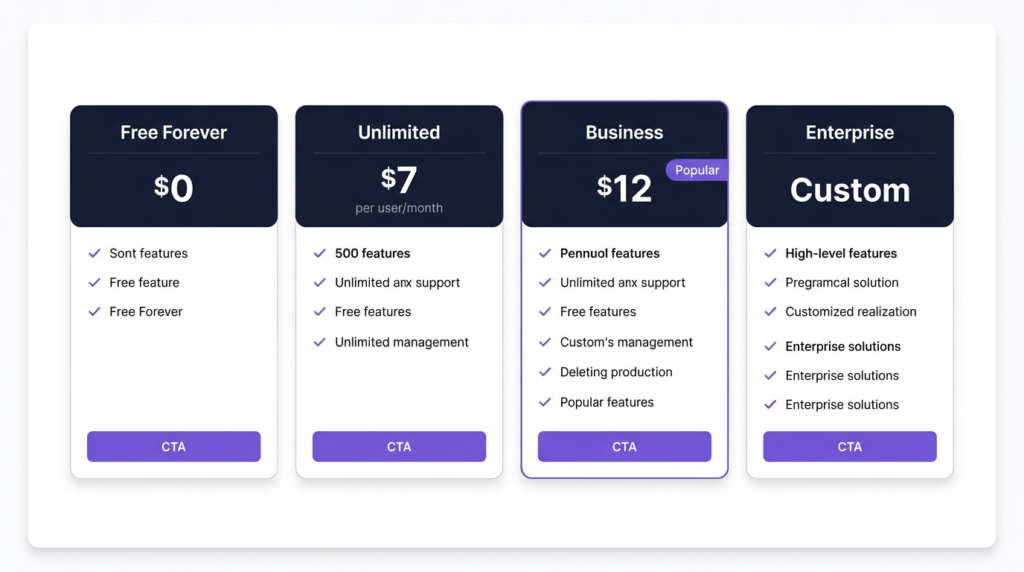
Here’s how the plans break down, verified against the live pricing page (May 24, 2026):
| Plan | Annual | Monthly | Key Details |
| Free Forever | $0 | $0 | 60MB storage, unlimited tasks, unlimited members |
| Unlimited | $7/user/mo | $10/user/mo | Unlimited storage, integrations, native time tracking |
| Business | $12/user/mo | $19/user/mo | 5,000 automations/month, advanced security, Google SSO |
| Enterprise | Custom | Custom | SAML SSO, SCIM, audit log, customer success manager |
| ⚠️ The Unlimited plan isn’t truly unlimitedDespite the name, the Unlimited plan doesn’t unlock everything. Advanced security features, granular reporting, and unlimited dashboard card types require Business or higher. If you’re comparing plans on price alone and assuming ‘Unlimited’ means feature-complete, you’ll hit a ceiling. This is one of the most common complaints in real user reviews, and it’s worth understanding before you commit. |
AI features (ClickUp Brain) are an add-on starting at $9/user/month on paid plans and are not included on the Free Forever plan.
ClickUp Pros and Cons
| ✅ Pros | ❌ Cons |
| Most generous free plan in the category (unlimited tasks and members) | Steep learning curve — significant setup time before productivity improves |
| Exceptional feature depth — tasks, docs, dashboards, automations, whiteboards, and chat in one platform | Performance can lag on large projects with thousands of tasks |
| Highly customisable views (List, Board, Gantt, Timeline, Calendar, and more) | Time tracking UX is clunky — multiple clicks to start a timer, no payroll or accounting export |
| Competitive pricing — Unlimited at $7/user/mo annual undercuts most direct competitors | Mobile app can be slow when switching between spaces, especially mid-campaign |
| ClickUp Brain adds real AI utility for thread summaries, task drafts, and workspace Q&A | Feature overload is a genuine risk — new users routinely enable too many views |
| Strong automation builder — 100+ triggers reduce manual admin overhead significantly | Chat feature is newer and not yet as polished as dedicated tools like Slack |
How Does ClickUp Compare to Alternatives?
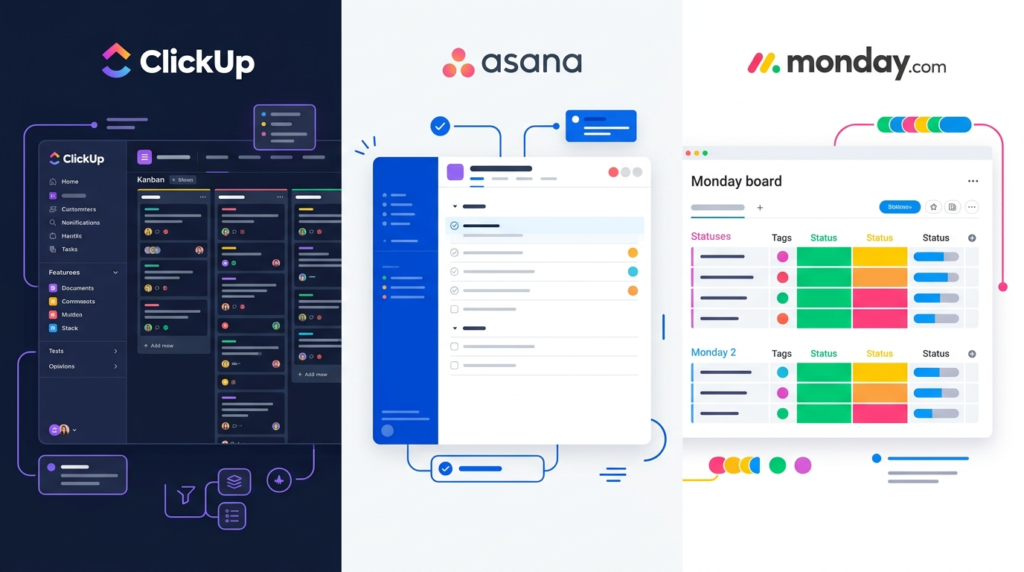
The three tools I get asked about most often are Asana, Monday.com, and Notion. Here’s a quick look at where ClickUp sits relative to each:
| ClickUp | Asana | Monday.com | |
| Free plan | Yes — unlimited tasks + members | Yes — task limits apply | No free plan for teams |
| Starting price (annual) | $7/user/mo | $10.99/user/mo | $9/seat/mo |
| Best for | Feature-rich all-in-one | Simplicity + non-technical teams | Visual workflows + sales |
| AI add-on | Brain AI ($9/user/mo) | AI Studio (included on paid plans) | AI credits bundled |
| Learning curve | High | Low–medium | Low–medium |
| Automations | 5,000/mo on Business | Limited on lower tiers | Included across plans |
| Native time tracking | Yes (Unlimited+) | Limited | Yes (Pro+) |
The summary version: ClickUp has more features and lower starting costs than Asana, but Asana is significantly faster to onboard and better for non-technical teams.
Compared to Monday.com, ClickUp wins on free plan generosity and feature depth; Monday.com wins on visual simplicity and a more polished UI out of the box.
I’ve written a full Asana review if you want a deeper look, and my detailed ClickUp pricing breakdown covers the plan tiers in more depth if cost is your primary decision point.
Who Should NOT Use ClickUp?
ClickUp’s depth is its biggest asset and its most significant liability. I’d steer these teams away:
- Non-technical teams — If your users aren’t comfortable with software setup and configuration, the learning curve will cost you more in lost productivity than the features gain you. Asana or Monday.com are better fits.
- Teams that need great time tracking — If billing by the hour or payroll export is a core requirement, use a dedicated time tracking tool (Toggl, Clockify) even if you use ClickUp for everything else.
- Teams that want a polished mobile experience — The desktop app is solid. The mobile app can be slow when switching between spaces, particularly during live campaigns. If your team works primarily from mobile, test it thoroughly on your actual devices before committing.
- Teams that want a quick win — ClickUp takes real setup investment before it runs smoothly. If you need a tool your team can be productive in within a week, this isn’t it.

Final Verdict: Is ClickUp Worth It?
ClickUp is worth it for the right team.
If you manage complex workflows across multiple projects or clients, want to consolidate tools without sacrificing capability, and are willing to invest time in proper setup, ClickUp delivers real value.
The feature depth is legitimate, the pricing is competitive, and the free plan is the most generous I’ve seen in this category.
It is not worth it if your team prioritises simplicity, has non-technical users, needs reliable mobile performance, or depends on time tracking for billing.
In those cases, you’ll spend more time fighting the tool than using it.
My verdict by team type:
- Marketing agencies and ops-heavy teams: Strong yes. The automation builder and dashboards alone justify the subscription cost.
- Startups scaling beyond basic task lists: Yes — but invest in proper onboarding. The 3–4 views rule applies on day one.
- Small teams wanting simplicity: Probably not. Asana or Trello will serve you better.
- Teams needing payroll-connected time tracking: Use a dedicated tool alongside, or choose a different platform.
Start with the free plan — it’s the lowest-risk way to find out if ClickUp’s depth works for your team. Try ClickUp free.
Frequently Asked Questions
Is ClickUp worth it?
ClickUp is worth it for teams that need feature depth and are willing to invest time in setup.
The free plan is the most generous in the category, and paid plans are competitively priced.
For teams that prioritise simplicity or have non-technical users, the learning curve outweighs the benefits — Asana or Monday.com are better fits.
What are the biggest downsides of ClickUp?
The four downsides that come up most consistently in real-world use: a steep learning curve that requires meaningful setup before the platform runs smoothly; performance degradation on very large projects with thousands of tasks; a time tracking UX that’s clunky and lacks payroll or accounting export; and a mobile app that can be slow when switching between spaces.
Is ClickUp free?
Yes. ClickUp’s Free Forever plan includes unlimited tasks and unlimited members with 60MB storage.
There’s no time limit and no credit card required. Paid plans start at $7/user/month (annual billing).
AI features via ClickUp Brain are a separate add-on starting at $9/user/month on paid plans.
How does ClickUp compare to Asana?
ClickUp has more features, more view types, and a lower starting price than Asana ($7/user/mo vs. $10.99/user/mo annual).
Asana is significantly simpler to onboard, better suited to non-technical teams, and has a cleaner UI out of the box.
If your team needs breadth and flexibility, ClickUp wins.
If you need something your team can use productively within a week, Asana is the better call. I’ve gone deeper on this in my full Asana review.
Does ClickUp have AI features?
Yes — ClickUp Brain covers task and thread summarisation, task description generation, and workspace Q&A.
It’s an add-on available on paid plans starting at $9/user/month.
The free plan includes trial access to some AI features but not the full Brain suite.
Brain is genuinely useful for specific tasks (catching up on long threads, drafting routine tickets) but isn’t a wholesale transformation of how you work.
Sources

Recent Posts
Monday.com Review 2026: Is It Still the Best Work OS?
I tested Monday.com against ClickUp, Asana, and Wr...
Updated July 27, 2026

AI Writing Software for Blogging in 2026: Best Tools + How to Stay AI-Search Vis...
The best AI writing software for blogging in 2026 ...
Updated July 20, 2026
HubSpot Review 2026: Is It Worth the Cost?
I tested HubSpot’s free CRM, Starter, and Pr...
Updated July 20, 2026
Teamwork.com Review 2026: Is It the Best PM Tool for Client Work?
I tested Teamwork.com for agency and client projec...
Updated May 29, 2026
Wrike Review 2026: Is It Worth the Cost?
I tested Wrike in real enterprise workflows. Here&...
Updated May 29, 2026
Asana Review 2026: Is It Worth It? (Honest, In-Depth Analysis)
I tested Asana across real team workflows. Here...
Updated May 29, 2026
Newsletter
Don't miss a thing!
Sign up to receive daily news